In this article, we will show you the difference between BigInt and BigInt number data types in JavaScript. And also when to use the BigInt data type
JavaScript codes cannot run on their own. They need a runtime environment to run. Runtime is the environment in which a programming language executes.
Javascript can be run in two runtime environments.
For this Tutorial, we will use the Browser environment. i.e. we will run our code in a web browser.
There are two ways you can include JavaScript. You can write it directly inside an HTML Page or Include it as a separate external file.
First, let us see how to write it directly inside an HTML Page.
Open your favorite editor and copy the following code. Save the files as index.html.
<!DOCTYPE html>
<html lang="en">
<body>
<head>
<h1><JavaScript Hello World Example</h1>
    <script>
        <document.write("Hello World")
    </script>
</head>

  </body>

</html>
The above is a simple HTML page. We have included the JavaScript code inside the Script tag.
Open the index.html in your favorite browser. You should see the following in the browser.
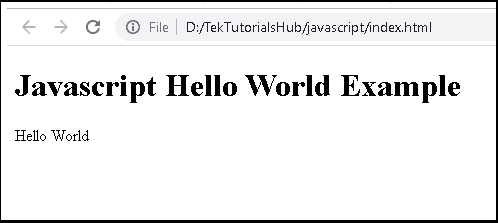
We Use the Script tag to insert JavaScript into an HTML page. It is a regular HTML Tag.
When a browser sees a Script tag, it knows that it is a Javascript code and hence passes it over to the JavaScript virtual machine to interpret and run it.
The following is the actual JavaScript code. It writes the “Hello World” in the browser.
document.write("Hello World")
The document.write method is part of the Document API, which allows us to manipulate the web page loaded in the browser. The write() method writes a string of text to a document.
Note that using the document.write is not a good practice to follow .
Another way to display a Hello World message is using the alert method. This method displays a dialog box with a message, which you pass as an argument to it. You can click on the OK button to close the alert window.
The alert method is part of the window API
<!DOCTYPE html>

<html>
    <body>
        <h1>JavaScript Hello World Example</h1>

<script>
        alert("Hello World")
    </script>
  </body>
</html>
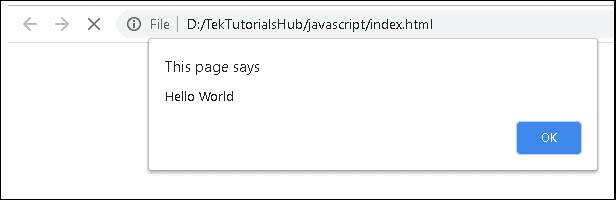
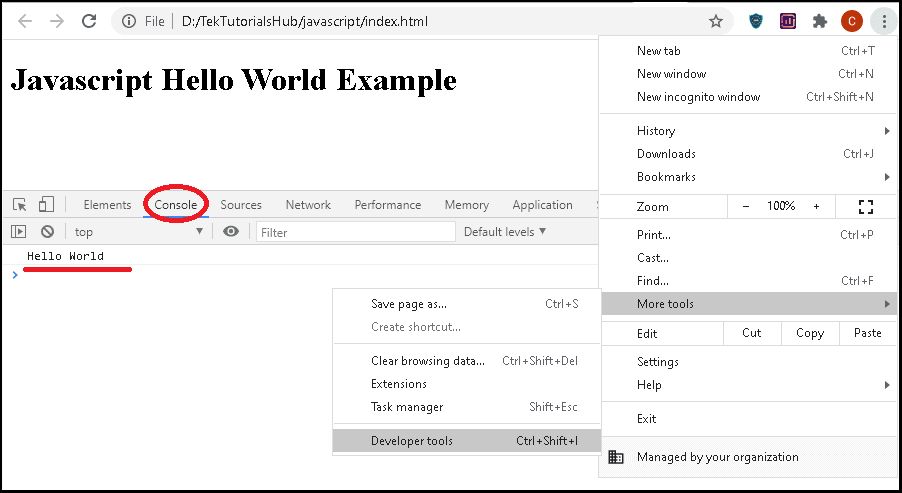
Another very useful method is console.log , which writes the message in the console window. In the following window To View the console window in chrome
<!DOCTYPE html>

<html>
 <body>
        <h1>JavaScript Hello World Example</h1>

    <script>
    console.log("Hello World")
    </script>
  </body>
</html>
Instead of including the JavaScript code in the HTML file, you can create an external JavaScript and include that file in the HTML file.
First create a new file helloworld.js and save it in the same folder as our index.html file.
alert("Hello World")
In our HTML Instead of the JavaScript code, we specify the path to our JavaScript file using the src attribute of the script tag.
<script>src="/path/to/script.js"</script>
The index.html is shown below.
<!DOCTYPE html>

<html>
<body>

<h1>JavaScript Hello World Example</h1>

<script>src="helloworld.js"</script>

</body>
</html>
You can also use the JavaScript online editors to test your JavaScript Code. You can any one of the JSfiddle &Codepen.io , Stackblitz, JSBin
Read More