ANGULAR
Complete Angular Tutorial For Beginners Introduction to Angular | What is Angular? Architecture Overview & Concepts of Angular How to Install Angular How to Create a new project in Angular Bootstrapping in Angular: How It Works Internally Angular Components Overview & Examples Data Binding in Angular Interpolation in Angular Property Binding in Angular Event Binding in Angular ngModel & Two way Data binding in Angular NgModelChange & Change Event in Angular Child/Nested Components in Angular angular directives angular ngFor directive ngSwitch, ngSwitchcase, ngSwitchDefa ult Angular Example How to use ngIf, else, then in Angular By example NgClass Example Conditionally apply class Angular ngStyle Directive Angular Trackby to improve ngFor Performance How to Create & Use Custom Directive In Angular Working with Angular Pipes How to Create Custom Pipe in Angular Formatting Dates with Angular Date Pipe Using Angular Async Pipe with ngIf & ngFor angular keyValue pipe Using Angular Pipes in Components or Services Angular Component Communication & Sharing Data Angular Pass data to child component Angular Pass data from Child to parent component Component Life Cycle Hooks in Angular Angular ngOnInit And ngOnDestroy Life Cycle hook Angular ngOnChanges life Cycle Hook Angular ngDoCheck Life Cycle Hook Angular Forms Tutorial: Fundamentals & Concep t s Angular Template-driven forms example How to set value in template-driven forms in Angular Angular Reactive Forms Example Using Angular FormBuilder to build Forms SetValue & PatchValue in Angular StatusChanges in Angular Forms ValueChanges in Angular Forms FormControl in Angular FormGroup in Angular Angular FormArray Example Nested FormArray Example Add Form Fields Dynamically SetValue & PatchValue in FormArray Angular Select Options Example in Angular Introduction to Angular Services Introduction to Angular Dependency Injection Angular Injector, @Injectable & @Inject Angular Providers: useClass, useValue, useFactory & useExisting Injection Token in Angular How Dependency Injection & Resolution Works in Angular Angular Singleton Service ProvidedIn root, any & platform in Angular @Self, @SkipSelf & @Optional Decorators Angular '@Host Decorator in Angular ViewProviders in Angular Angular Reactive Forms Validation Custom Validator in Angular Reactive Form Custom Validator with Parameters in Angular Inject Service Into Validator in Angular template_driven_form_validation_in_angular Custom Validator in Template Driven Forms in Angular Angular Async Validator Example Cross Field or Multi Field Validation Angular How to add Validators Dynamically using SetValidators in Angular Angular HttpClient Tutorial & Example Angular HTTP GET Example using httpclient Angular HTTP POST Example URL Parameters, Query Parameters, httpparams in Angular HttpClient Angular HTTPHeaders Example Understanding HTTP Interceptors in Angular Angular Routing Tutorial with Example Location Strategy in Angular Angular Route Params Angular : Child Routes / Nested Route Query Parameters in Angular Angular Pass Data to Route: Dynamic/Static RouterLink, Navigate & NavigateByUrl to Navigate Routes RouterLinkActive in Angular Angular Router Events ActivatedRoute in Angular Angular Guards Tutorial Angular CanActivate Guard Example Angular CanActivateChild Example Angular CanDeactivate Guard Angular Resolve Guard Introduction to Angular Modules or ngModule Angular Routing between modules Angular Folder Structure Best Practices Guide to Lazy loading in Angular Angular Preloading Strategy Angular CanLoad Guard Example Ng-Content & Content Projection in Angular Angular @input, @output & EventEmitter Template Reference Variable in Angular ng-container in Angular How to use ng-template & TemplateRef in Angular How to Use ngTemplateOutlet in Angular '@Hostbinding and @Hostlistener_in_Angular Understanding ViewChild, ViewChildren &erylist in Angular ElementRef in Angular Renderer2 Example: Manipulating DOM in Angular ContentChild and ContentChildren in Angular AfterViewInit, AfterViewChecked, AfterContentInit & AfterContentChecked in Angular Angular Decorators Observable in Angular using RxJs Create observable from a string, array & object in angular Create Observable from Event using FromEvent in Angular Using Angular observable pipe with example Angular Map Operator: Usage and Examples Filter Operator in Angular Observable Tap operator in Angular observable Using SwitchMap in Angular Using MergeMap in Angular Using concatMap in Angular Using ExhaustMap in Angular Take, TakeUntil, TakeWhile & TakeLast in Angular Observable First, Last & Single Operator in Angular Observable Skip, SkipUntil, SkipWhile & SkipLast Operators in Angular The Scan & Reduce operators in Angular DebounceTime & Debounce in Angular Delay & DelayWhen in Angular Using ThrowError in Angular Observable Using Catcherror Operator in Angular Observable ReTryWhen inReTry, ReTryWhen in Angular Observable Unsubscribing from an Observable in Angular Subjects in Angular ReplaySubject, BehaviorSubject & AsyncSubject in Angular Angular Observable Subject Example Sharing Data Between Components Angular Global CSS styles View Encapsulation in Angular Style binding in Angular Class Binding in Angular Angular Component Styles How to Install & Use Angular FontAwesome How to Add Bootstrap to Angular Angular Location Service: go/back/forward Angular How to use APP_INITIALIZER Angular Runtime Configuration Angular Environment Variables Error Handling in Angular Applications Angular HTTP Error Handling Angular CLI tutorial ng new in Angular CLI How to update Angular to latest version Migrate to Standalone Components in Angular Create Multiple Angular Apps in One Project Set Page Title Using Title Service Angular Example Dynamic Page Title based on Route in Angular Meta service in Angular. Add/Update Meta Tags Example Dynamic Meta Tags in Angular Angular Canonical URL Lazy Load Images in Angular Server Side Rendering Using Angular Universal The requested URL was not found on this server error in Angular Angular Examples & Sample Projects Best Resources to Learn Angular Best Angular Books in 2020

Angular Environment Variables

In this tutorial, we will show you how to set up an Angular Environment Variables for the various environments. First, we will learn where Angular keeps its environment Variable. Next, we will create a new environment variable. We then assign different values to this environment variable based on the environment. Finally, we read these values in Angular Application. We also learn how to add a new test environment.

What is Angular Environment

Most apps go through different stages before they go into production. These stages may be development, testing, staging, and production. We call these stages as Environment. All these Environments require different setups & configuration. For Example, while you build the app for production, we need our app to be optimized, minified and uglified. For development, we do not want any of them but want the app to log all kinds of debugging information.

What is Angular Environment Variable

The Environment Variable are those variables, whose value changes as per the environment we are in. This will help us to change some behavior of the App based on the environment.

For Example, You may want to use different API Endpoints for production, testing, and development. Or you do not want to send those log messages to console in the production environment.

Where is Angular Environment Variable

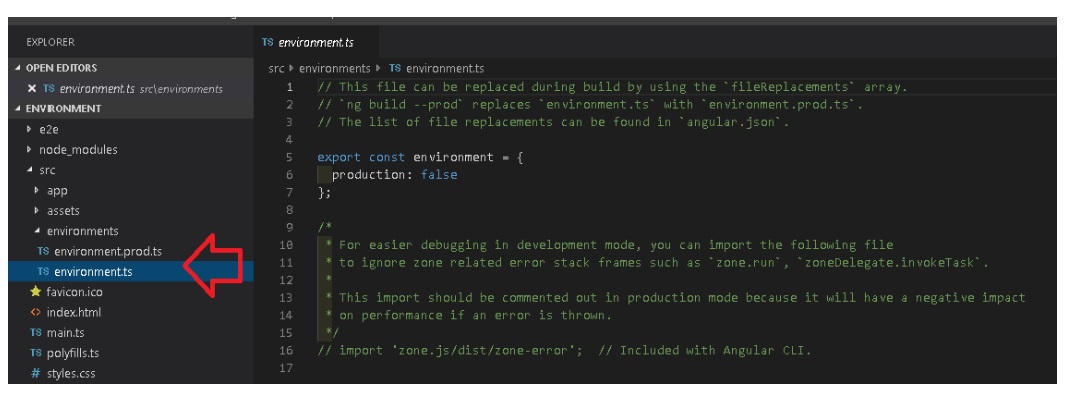
The Angular provides built-in support to configure and manage environment variables. It keeps the environment configuration under the folder src/environments folder
image

Location of Angular Environment Variable

The folder contains two files one in environment.ts & the other one is environment.prod.ts

Out of the box, Angular provides support for the development & production environment. The default is the development and uses the environment.ts The production environment uses the environment.prod.ts file.

If you open the above files, you will find the following code.


//environment.ts
 
export const environment = {
  production: false
};


//environment.prod.ts
 
export const environment = {
  production: true
};


The file has only one variable declared. The production variable, which is set to true in environment.prod.ts and false in the other

How to Create Environment Variable

Creating a new environment variable is very simple. Add the new environment variable to all the environment files

For Example, to have a different apiEndPoint, add the variable to each and every environment files as shown below


//environment.ts
 
export const environment = {
  production: false,
  apiEndPoint:"https://api.development.example.com"
};


//environment.prod.ts
 
export const environment = {
  production: true,
  apiEndPoint:"https://api.production.example.com"
};


How To Read the Environment Variable

Now, we have a new environment variable, we want to read it in our app.

First, import the default environment in the component. Note that you should not import any other environment files like environment.prod, but only the default environment file.


import { environment } from '../environments/environment';


Next, read the value as shown below.


  apiEndPoint:string="";
  constructor() {
    this.apiEndPoint = environment.apiEndPoint;
  }


Testing the Environment Variable

ng serve

The ng serve command builds the app in memory and serves them via the local development server.

Run the app using the ng serve. This will build the app using the default or development environment variable. And you should see the https://api.development.example.com in your console window.


ng serve


Use the --configuration="production" option will force the serve command to build the app using the production configuration. Using the production configuration switches the environment file to environment.prod. And you should see https://api.production.example.com in your console window.


ng serve --configuration="production"


ng Build

We use ng build to build the app before distributing it. it will only build the app and copies the final output to the dist folder. It does not serve the app like ng serve does.

ng build uses the default environment i.e. development environment.

The ng build --prod or (ng build --configuration="production") uses the production environment.

How does Angular know to switch files?

It does not. It is our job to tell angular which files to use for each environment. We do that in Angular.Json file.

All the build related configuration to the app is stored under the node projects -> <name>-> architect -> build.

Angular.json. Place where you find build configuration of all angular envrionments

The build -> configuration -> production node is where all our configuration for the production build exits.

The fileReplacements section is where all the magic happens. It tells the angular compiler to replace the environment.ts with the environment.prod.ts, when the production configuration is used.


            "production": {
              "fileReplacements": [
                {
                  "replace": "projects/variable/src/environments/environment.ts",
                  "with": "projects/variable/src/environments/environment.prod.ts"
                }
              ],


Create our own configuration

We can create our own environment easily. Let us add the test configuration.

First, go to app->environments folder and create a new environment file. You can actually name the file whatever you want, but let us stick to the convention and name it as environment.test.ts.


export const environment = {
  production: false,
  apiEndPoint:"https://api.test.example.com"
};


Next, we need to create a test node under the build ->configurations section as shown below. Add the fileReplacements section which instructs the compiler to use the environment.test.ts when in test configuration.

                              
        "configurations": {
            "production": {
                //Removed to make code smaller
            },
            "test" : {
              "fileReplacements": [
                {
                  "replace": "projects/variable/src/environments/environment.ts",
                  "with": "projects/variable/src/environments/environment.test.ts"
                }
              ]
            }


The above is sufficient if we want to use the configuration with the command ng build --configuration="test". But if you want it to work with the ng serve then. we need to add the test node under architect->serve->configurationsnode with the following "browserTarget":"variable:build:test"

Note that the variable is the name of the app. You need to replace it with the name you have given to your app.


      "architect": {
        "build": {
        },
        "serve": {
          "builder": "@angular-devkit/build-angular:dev-server",
          "options": {
            "browserTarget": "variable:build"
          },
          "configurations": {
            "production": {
              "browserTarget": "variable:build:production"
            },
            "test": {
              "browserTarget": "variable:build:test"
            }
          }


Now, run ng serve --configuration="test" and you should see the https://api.test.example.com in your console window

Summary

In this article. we learned what is Angular Environment Variable is and how to add a new environment variable and read it in our Angular App.