This guide will show you How to Create a new project in Angular. We use Angular CLI to help us to create the app. Angular has come a long way since its first version of Angular 2. To create an Angular project, all you need to do is to install Angular CLI and run the ng new command.
The Angular CLI is a command-line tool that allows us to create, develop, scaffold, and manage Angular applications from a command shell.
It helps us to quickly create an Angular application with all the configuration files and packages in one single command. It also allows us to add features (components, directives ,services, etc.) to existing Angular applications.
Before starting with Angular, you need to Installing Angular. Before going further, install the following.
You can read the instructions on installing it from the tutorial Installing Angular.
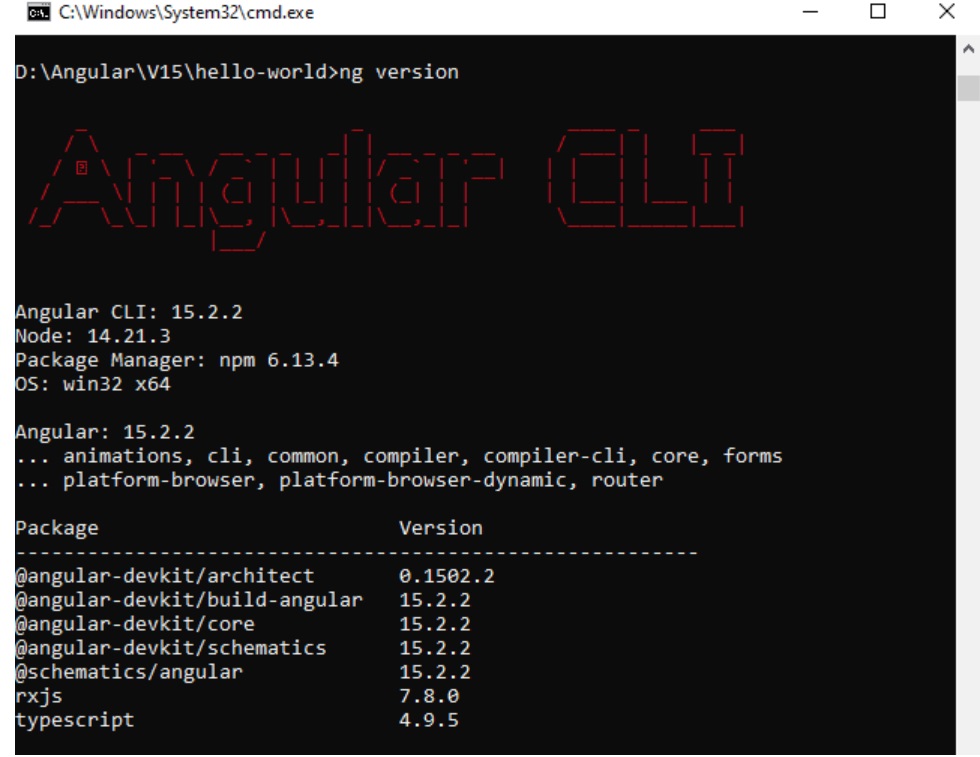
TYou can find out the installed Angular CLI Version by Using the Command.
ng version
The latest version as of writing this article is 15.2.2. The command above also gives the version of the node installed in your system. You can keep track of the latest Angular CLI release from this link .
Creating your first project in Angular has become very simple using Angular CLI. All you need to run the command from the Prompt
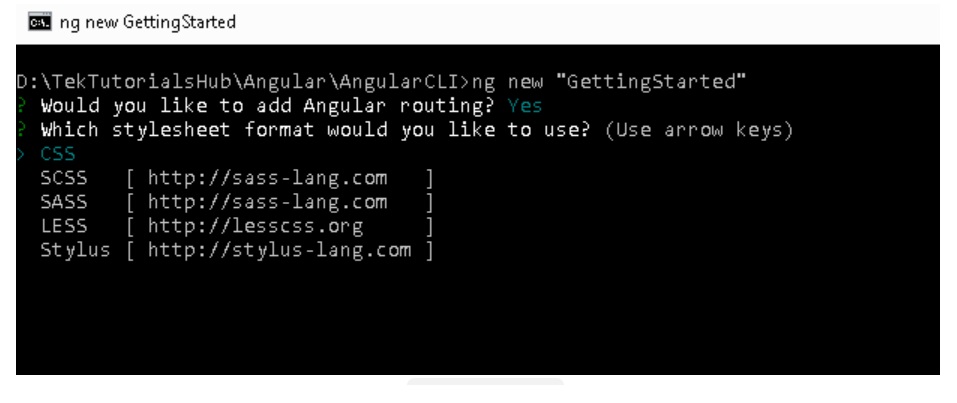
ng new GettingStarted
The installer will ask two questions.
Whether you wish to add Angular Routing? Enter Yes here. You will learn more about
Which stylesheet format would you like to use? You have four options: CSS, SCSS, SASS, and LESS.Angular has deprecated Stylus. Please feel free to choose whichever works best for you. For this tutorial, we choose CSS.
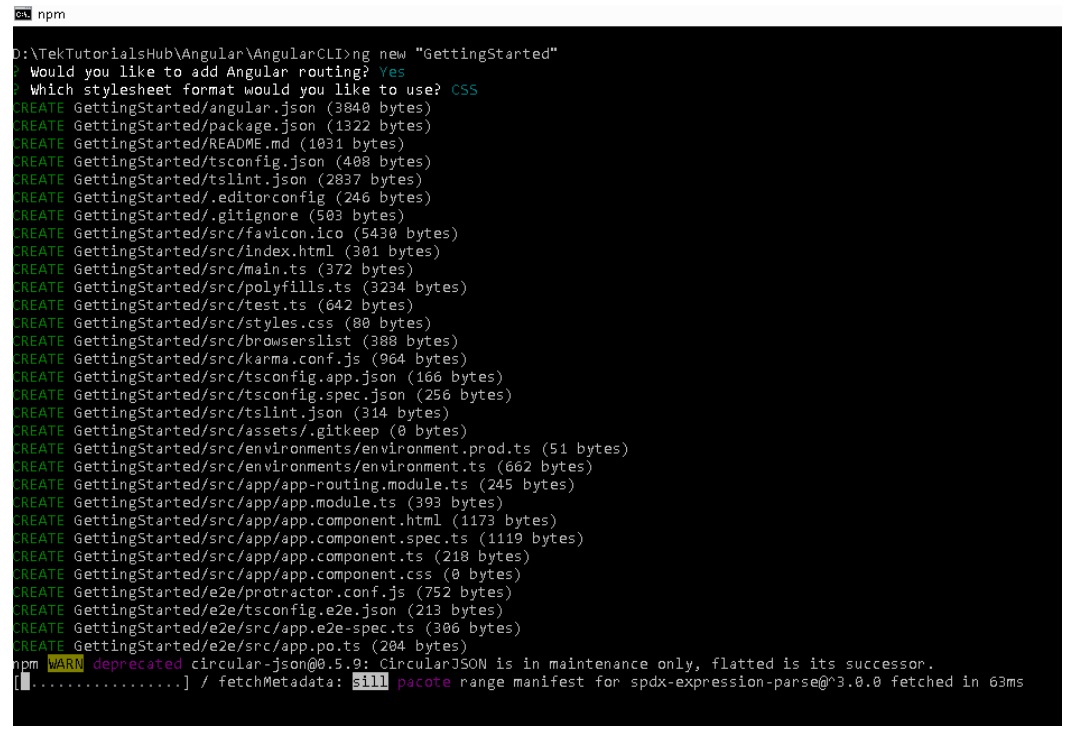
The above command will create a folder GettingStarted and copies all the required dependencies and configuration settings. The Angular CLI does the following
To run your application, all you need to do is type the following command
ng serve --open
or
ng serve
The above command compiles the Angular application and starts the development server. The server keeps a watch on our project folder. If you make any changes in the code, it re compiles the project.
The default port for the development server is 4200. The above command will automatically open the web browser and starts the application. If you omit the --open option, you have to manually open it by typing http://localhost:4200/ in the browser address bar.
You will see see GettingStarted app is running displayed on the browser.
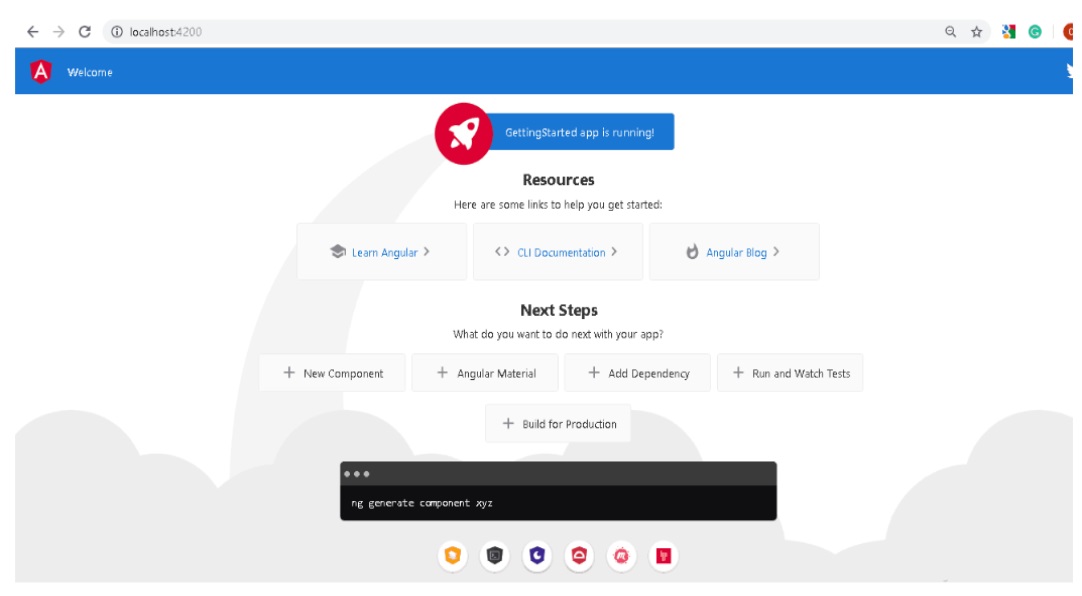
The following screen shot shows you the complete process of creating a new project in Angular.
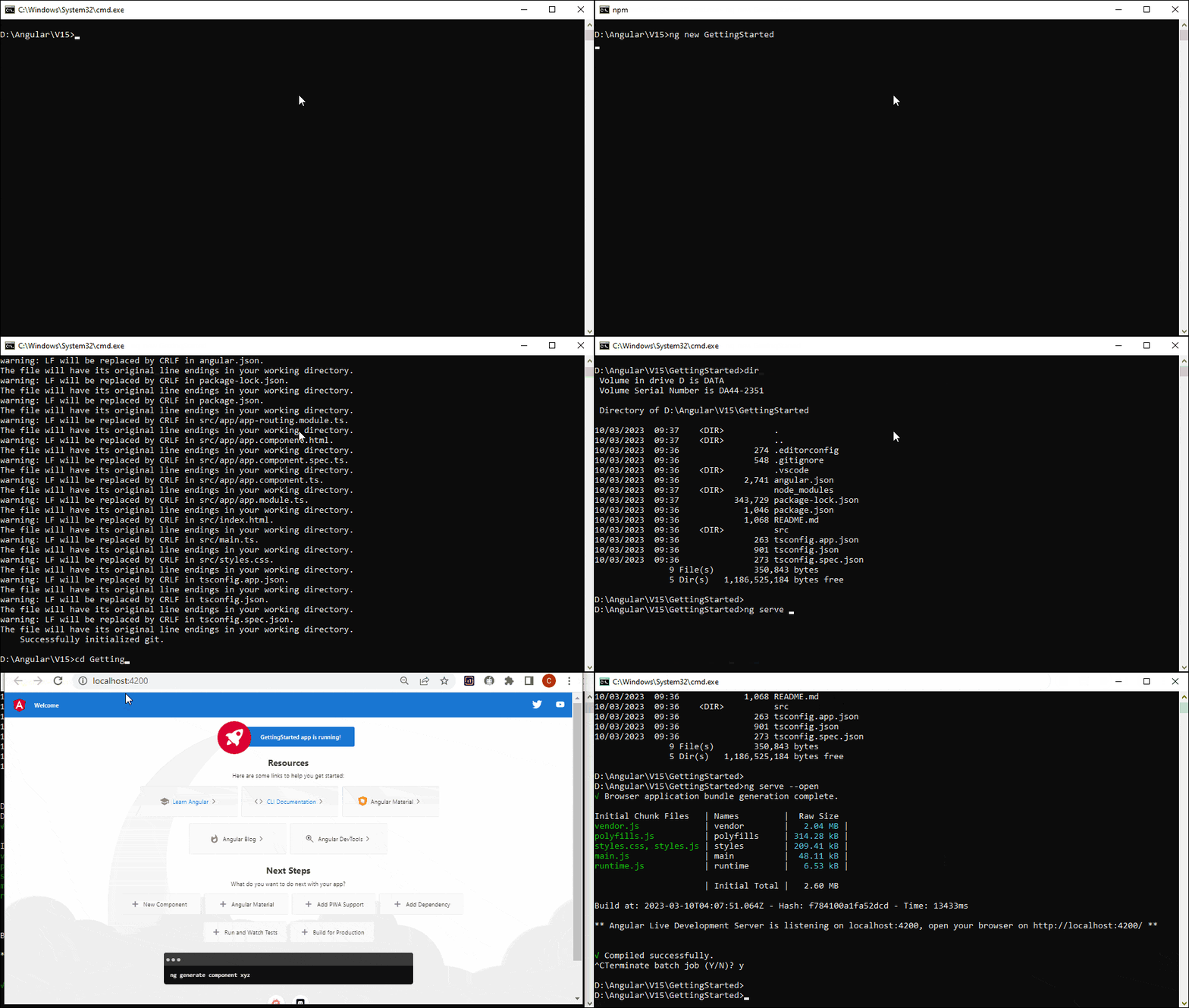
Open the GettingStarted folder from Visual Studio Code, and you will see the following folder structure
├── node_modules
├── src
│   ├── app
│   │   ├── app-routing.module.ts
│   │   ├── app.component.css
│   │   ├── app.component.html
│   │   ├── app.component.spec.ts
│   │   ├── app.component.ts
│   │   ├── app.module.ts
│   ├── assets
│   │   ├── .gitkeep
│   ├── favicon.ico
│   ├── index.html
│   ├── main.ts
│   ├── polyfills.ts
│   ├── styles.css
│   ├── test.ts
├── .editorconfig
├── .gitignore
├── angular.json
├── package-lock.json
├── package.json
├── README.md
├── tsconfig.app.json
├── tsconfig.json
└── tsconfig.spec.json
The root folder application contains two subfolders. node_modules and src. It also contains a few configuration files
.editorconfig: This is the configuration file for the Visual
Studio code editor. You can visit //editorconfig.org more information.
.gitignore: Git configuration to ensure autogenerated files are
not committed to source control.
angular.json: This is the configuration file for Angular CLI.
The older
versions of Angular used the file angular-cli.json.
package.json: The package.json is
an npm configuration file that lists the third-party packages that your project depends
on. We also have package-lock.json
README.md: The Read me file
tsconfig.json,tsconfig.app.json &
tsconfig.spec.json are Typescript
configuration files. The tsconfig.json is the Typescript
compiler configuration file. This file specifies the compiler options required for the
Typescript to compile (transpile) the project.
The tsconfig.app.json is used for compiling the code, while tsconfig.spec.json for
compiling the
tests
This is the folder NPM Package Manager copies all external dependencies of our project.
This directory is where the bulk of your application code will go. It contains the app and assets folder
The Angular CLI creates a simple application that works out of the box. It creates the root component, a root module, and a unit test class to test the component. Now let us see each component of the application one at a time
The app.component.ts is the component that is added to the project by Angular CLI. You will find it under the folder app/src
import { Component } from '@angular/core';

@Component({
  selector: 'app-root',
  templateUrl: './app.component.html',
  styleUrls: ['./app.component.css']
})
export class AppComponent {
  title = 'GettingStarted';
}
The component class is the most essential part of our application. It represents the view of the application. A view is a region on the screen. It consists of three main parts, i.e. a class, a class decorator, and an import statement
import { Component } from '@angular/core';
The import statement imports the libraries used in our component class. This statement is similar to C# using statement. Our Component is decorated with the @Component decorator, part of the @angular/core module. So, we need to refer to it in our class. This is done using the import method, as shown above.
export class AppComponent {
  title = 'GettingStarted';
}
The component is a simple class. We define it using the export keyword. The other parts of the app can import it use it. The above component class has one property title. This title is displayed, when the application is run.
The component class can have many methods and properties. The main purpose of the component is to supply logic to our view.
The AppComponent class is then, decorated with @Component decorator. The @Component, (called class decorator) provides Metadata about our component. The Angular uses this Metadata to create the view
@Component({
    selector: 'app-root',
    templateUrl: './app.component.html',
    styleUrls: ['./app.component.css']
})
The @component Metadata above has three fields. The selector, templateURL & styleUrls
The templateUrl contains the path to the HTML template file. The Angular uses this HTML file to render the view. In the above example, it points to the app.component.html file.
The styleUrls is an array of Style Sheets that Angular uses to style our HTML file. In the above example, it points towards to app.component.css style sheet.
The app.component.css file is in the same folder as the AppComponent. The file is empty. You can create styles for the component and put it here
The selector tells angular where to display the template. The example above selector is app-root. The Angular, whenever it encounters the above tag in the HTML file, it replaces it with the template (app.component.html)
The app-root selector is used in index.html, which we will see later.
The app.component.html is our template. The templateUrl in component class above points to this class. In
The app.component.html file is in the same folder as the AppComponent. The code is almost 500 lines of code, and almost all of it is standard HTML & CSS
Note that {{title}} is placed inside the h1 tags in line no 344. The double curly braces are the angular way of telling our app to read the title property from the component (AppComponent). We call this data binding (interpolation).
<span>{{ title }} app is running!</span>
Angular organizes the application code as Angular modules. The Modules are closely related blocks of code in functionality. Every application must have at least one module.
The Module which loads first is the root Module. This Module is our root module.
The root module is called app.module.ts. (under src/app folder). It contains the following code.
import { NgModule } from '@angular/core';
import { BrowserModule } from '@angular/platform-browser';

import { AppRoutingModule } from './app-routing.module';
import { AppComponent } from './app.component';

@NgModule({
  declarations: [
    AppComponent
  ],
  imports: [
    BrowserModule,
    AppRoutingModule
  ],
  providers: [],
  bootstrap: [AppComponent]
})
export class AppModule { }
The structure of the Angular module is similar to the component class. Like a Component, it consists of three parts. A class, class decorator and import statement
export class AppModule { }
Similar to the component, the Module class is defined with the export keyword. Exporting the class ensures that you can use this module in other modules.
@NgModule({
  declarations: [
    AppComponent
  ],
  imports: [
    BrowserModule,
    AppRoutingModule
  ],
  providers: [],
  bootstrap: [AppComponent]
})
We use the @component decorator to define our component. The Angular Modules require a @ngModule decorator. @ngModue decorator passes the metadata about the module.
The @ngModule Metadata above has four fields. The declarations, imports, providers, & bootstrap
Imports Metadata the angular list of other modules used by this module. We are importing BrowserModule and AppRoutingModule. The BrowserModule is the core angular module, which contains critical services, directives, and pipes, etc. The AppRoutingModule is defines the application Routes and is mentioned below
Declaration Metadatalists the components, directives & pipes that belong to this module.
Providers are services that belong to this module, which we can use in other modules.
Bootstrap Metadata identifies the root component of the module. When Angular loads, the appModule it looks for bootstrap Metadata and loads all the components listed here. We want our module to load AppComponent , hence we have listed it here.
import { BrowserModule } from '@angular/platform-browser';
import { NgModule } from '@angular/core';

import { AppRoutingModule } from './app-routing.module';
import { AppComponent } from './app.component';
The import statement is used to import the Angular libraries required by AppModule. like NgModule & BrowserModule. We also need to import AppComponent, as we want to load AppComponent, when we load the AppModule
import { NgModule } from '@angular/core';
import { Routes, RouterModule } from '@angular/router';

const routes: Routes = [];

@NgModule({
  imports: [RouterModule.forRoot(routes)],
  exports: [RouterModule]
})
export class AppRoutingModule { }
The AppRoutingModule in the file app-routing.module.ts defines the Routes of the application. These Routes tells Angular how to move from one part of the application to another part or one View to another View.
The Routes defined in the constant const routes: Routes = [];, which is empty
This Module is defined as a separate Module and is imported into AppModule.
The app.component.html is the file we need to show the user. It is bound to the AppComponent component. We indicated that the AppComponent is to be bootstrapped when AppModule is loaded.
We must ask Angular to load AppModule when the application is loaded. This is done in the main.ts file
The main.ts file is found under the src folder. The code is as follows.
import { platformBrowserDynamic } from '@angular/platform-browser-dynamic';

import { AppModule } from './app/app.module';

platformBrowserDynamic().bootstrapModule(AppModule)
  .catch(err => console.error(err));
The first line of the import is platformBrowserDynamic library. This library contains all the functions required to bootstrap the angular application.
We also need to import our AppModule.
Finally, the bootstrapModule method of platformBrowserDynamic library to bootstrap our AppModule
platformBrowserDynamic().bootstrapModule(AppModule)
  .catch(err => console.error(err));
Index.html is the entry point of our application.
<!doctype html>
<html lang="en">
<head>
  <meta charset="utf-8">
  <title>GettingStarted</title>
  <base href="/">
  <meta name="viewport" content="width=device-width, initial-scale=1">
  <link rel="icon" type="image/x-icon" href="favicon.ico">
</head>
<body>
  <app-root></app-root>
</body>
</html>
The selector app-root,which we defined in our component metadata, is used as an HTML tag. The Angular scans the HTML page, and when it finds the tag <app-root> <app-root> replaces the entire content with the content of app.component.html
We have a few other files under the app folder.
A folder where you can put images and anything else.
Your Angular global styles go here. Most of the time, you’ll want local styles in your components for easier maintenance, but styles that affect all of your apps need to be in a central place.
The following files & folders were deprecated or removed
The Angular CLI no longer creates this file as it is no longer needed. You can run the command ng test , and angular will take care of running the test. You can still create it if needed, but remember to update the corresponding configuration in the angular.json file.
karma.conf.js is the Configuration file for the karma test runner.Angular no longer creates this file. Angular takes care of Karma configuration using the settings from angular.json. But if you wish, you can create your own configuration file using the command. ng generate config karma
Angular 15 also removes the browserslist. This file Ensures the compatibility of the Angular app with different browsers. If you want to support different browsers than those supported by Angular, use the command ng generate config browserslist to generate one.
Starting from version 15, Angular does not create polyfills.ts automatically. But you can add them if you want to support older browsers. You can refer to the article Enable Polyfills with CLI Projects.
Angular 15 no longer creates the src/environments folder and the environment.ts and environment.prod.ts files. You can still use these files, but you need to generate these files manually. You should also add relevant fileReplacements configuration settings in the angular.json file.
The enableProdMode function call was also removed from (Angular 15) the main.ts file as it is no longer necessary.
The Angular dropped support for Protractor from Angular 12. Hence you will see this folder only if you are using any version below Angular 12
Angular deprecated the tslint from version Angular 11. You will see this file only if you create a new project using Angular 11 or less. You can install any linter you want (You can install EsLint, which is available as a Visual Code plugin)
To create a new project in Angular, we must install angular/cli first. We use ng new <name> to create new project. The Angular CLI does an excellent job of downloading all the required libraries and configuring the app. We use ng serve to run our application, which starts the Webpack development server at port 4200. In the subsequent tutorials, we learn more about Angular