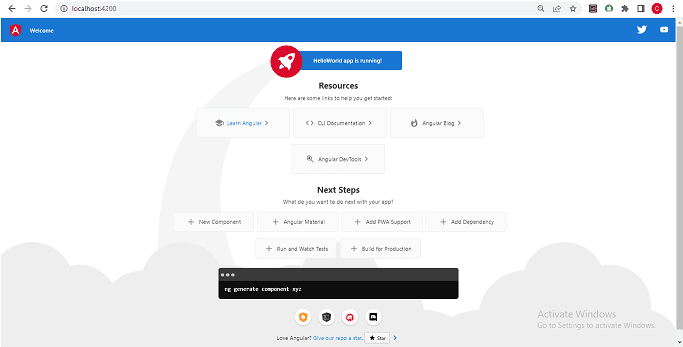
In this article on Bootstrapping in Angular, let us find out how Angular works internally and bootstraps our app. We used ng new to create a new Angular project. It generates lots of boilerplate codes. It also configures the Typescript, Webpack & Karma. The app, when run, displays a simple HTML page with several useful links to Angular. Now let us break up this app and look at what happens when the app starts until it displays the HTML page
We’ll start with a new application to learn how Angular works internally.
Install Angular and run the following command to create a new Angular application.
ng new GettingStarted
You can run the app using the following command, which will compile and run the app.
ng serve --open
Bootstrapping is the process of initializing or loading our Angular application.
Angular takes the following steps to load our first view.
Web apps need a starting point. Index.html is usually the first page to load. Let us open the file and find out what it contains. You will find it under the src folder.
<!doctype html>
<html lang="en">
<head>
  <meta charset="utf-8">
  <title>GettingStarted</title>
  <base href="/">
  <meta name="viewport" content="width=device-width, initial-scale=1">
  <link rel="icon" type="image/x-icon" href="favicon.ico">
</head>
<body>
  <app-root></app-root>
</body>
</html>
There are no javascript files in the index.html. Neither there is a stylesheet file. The body of the files has the following HTML tag.
<app-root></app-root>
How do Angular loads? To find out, let us build our application
To run our application, we use the Angular CLI command ng serve.
ng serve builds our application but does not save the compiled application to the disk. It saves it in memory and starts the development server. ng serve also watches over the project. If we make any changes to the application, it will re-compile and update the file.
To view the compiled application, we need to build the project. We can do
that using the ng build. Open the command prompt and run the ng build
command. This will build and copy the output files to the dist\getting-started
folder (Older versions copied the files to the dist folder).
ng build
Now open the dist\getting-started and open the
index.html.
<!DOCTYPE html>
<html lang="en">
  <head>
    <meta charset="utf-8" />
    <title>GettingStarted</title>
    <base href="/" />
    <meta name="viewport" content="width=device-width, initial-scale=1" />
    <link rel="icon" type="image/x-icon" href="favicon.ico" />
    <link rel="stylesheet" href="styles.56e3e15f5d5be678.css" />
  </head>
  <body>
    <app-root></app-root>
    <script src="runtime.87dd532f2ee308a5.js" type="module"></script>
    <script src="polyfills.96a2a660c10c5395.js" type="module"></script>
    <script src="main.6ea3cc439cb6e266.js" type="module"></script>
  </body>
</html>
You can see that the compiler included four script files. They are runtime, polyfills, styles, & main.
runtime.js:
Webpack runtime file
polyfills.js –
scripts for supporting the variety of the latest modern browsers
styles.js –
This file contains the global style rules bundled as a javascript file.
vendor.js –
contains the scripts from the Angular core library and any other 3rd party library.
main.js –
code of the application.
The Webpack module loader adds these files.
Webpack is a bundler. it scans our application looking for javascript files and merges them into one ( or more) big file. Webpack has the ability to bundle any kind of file like JavaScript, CSS, SASS, LESS,images,HTML, & fonts, etc.
The Angular CLI uses Webpack as a module bundler. Webpack needs a lot of configuration options to work correctly. The Angular CLI sets up all these configuration options behind the scene.
The Angular CLI uses Webpack as a module bundler. Webpack needs a lot of configuration options to work correctly. The Angular CLI sets up all these configuration options behind the scene.
The Webpack traverses through our application, looking for javascript and other files, and merges all of them into one or more bundles. In our example application, it has created five files.
Angular discontinues the support for IE 11. Hence removes the differential loading from version 13.
ng build does a production build. In the prior versions of Angular, we needed to specify the
flag ng build --prod for a production build. The production build optimizes,
minimizes, and uglifies the code.
You can use the ng build --optimization=false to stop the compiler from
optimizing, minimizing, and uglifing the code.
Since Angular 7, we have had a new feature called
conditional polyfill loading (differential loading). Now Angular builds two versions
of script files, one for es2015 (runtime-es2015.js, polyfills-es2015.js, vendor-es2015.js,
main-es2015.js) & another for es5 (runtime-es5.js, polyfills-es5.js, vendor-es5.js,
main-es5.js). The es2015 (es6) is for modern browsers, and es5 is for older browsers, which
do not support the new features of es2015.
Angular used the nomodule attribute, which tells the modern browser to ignore and not load
the script. Hence es5 scripts are not loaded in modern browsers.
Angular 2 generated only three script files (inline.js, styles.bundle.js & main.bundle.js).
So when index.html is loaded, the Angular core libraries and third-party libraries are loaded. Now the angular needs to locate the entry point.
The entry point of our application is main.ts. You will find it under the src folder.
The Angular finds out the entry point from the configuration file angular.json. This file is located in the root folder of the project. The relevant part from angular.json is shown below
{
  "$schema": "./node_modules/@angular/cli/lib/config/schema.json",
  "version": 1,
  "newProjectRoot": "projects",
  "projects": {
    "GettingStarted": {
      "projectType": "application",
      "schematics": {},
      "root": "",
      "sourceRoot": "src",
      "prefix": "app",
      "architect": {
        "build": {
          "builder": "@angular-devkit/build-angular:browser",
          "options": {
            "outputPath": "dist/getting-started",
            "index": "src/index.html",
            "main": "src/main.ts",              ===>
            "polyfills": [
              "zone.js"
            ],
The main entry under the node projects -> GettingStarted -> architect -> build -> options -> main points towards the src/main.ts This file is the entry point of our application.
The angular-cli.json was the configuration file in Angular 5 and
before. It is now angular.json since the version Angular 6.
The main.ts file is shown below.
import { platformBrowserDynamic } from '@angular/platform-browser-dynamic';

import { AppModule } from './app/app.module';

platformBrowserDynamic().bootstrapModule(AppModule)
  .catch(err => console.error(err));
Let us look at the relevant code in detail.
import { platformBrowserDynamic } from '@angular/platform-browser-dynamic';
This line imports the module platformBrowserDynamic from the library@angular/platform-browser-dynamic.
platformBrowserDynamic is the module responsible for loading the Angular application in the desktop browser?
Angular Applications can be bootstrapped in many ways and in many platforms. For example, we can load our application in a Desktop Browser or in a mobile device with Ionic or NativeScript.
If you are using the nativescript, then you will be using platformNativeScriptDynamic it from nativescript-angular/platform library and will be calling platformNativeScriptDynamic().bootstrapModule(AppModule). Read more about the Angular Nativescript bootstrap process here.
import { AppModule } from './app/app.module';
The above line imports AppModule. The AppModule is the Root Module of the app. The Angular applications are organized as modules. Every application built in Angular must have at least one module. The module loaded first when the application is loaded is called a root module.
platformBrowserDynamic().bootstrapModule(AppModule)
  .catch(err => console.error(err));
The platformBrowserDynamic loads the root module by invoking the bootstrapModule and giving it the reference to our Root module i.e AppModule
The prior versions of main.ts also contained a call to enableProdMode();. This is no longer needed, hence removed from Angular 15.
The angular bootstrapper loads our root module AppModule. The AppModule is located under the folder src/app. The code of our Root module is shown below.
import { NgModule } from '@angular/core';
import { BrowserModule } from '@angular/platform-browser';

import { AppRoutingModule } from './app-routing.module';
import { AppComponent } from './app.component';

@NgModule({
  declarations: [
    AppComponent
  ],
  imports: [
    BrowserModule,
    AppRoutingModule
  ],
  providers: [],
  bootstrap: [AppComponent]
})
export class AppModule { }
The root module must have at least one root component. The root component is loaded when the module is loaded by Angular.
In our example, AppComponent is our root component. Hence we import it.
import { AppComponent } from './app.component';
We use @NgModule class decorator to define an Angular Module
and provide metadata about the Modules.
@NgModule({
  declarations: [
    AppComponent
  ],
  imports: [
    BrowserModule,
    AppRoutingModule
  ],
  providers: [],
  bootstrap: [AppComponent]
})
export class AppModule { }
The @NgModule has several metadata properties.
We need to list all the external modules required, including other Angular modules used by this Angular Module.
The Declarations array contains the components, directives, & pipes that belong to this Angular Module. We have only one component in our application. AppComponent.
The providers array is where we register the services we create. The Angular dependency injection framework injects these services in components and directives. pipes and other services.
The component that angular should load when this Angular Module loads. The component must be part of this module. We want AppComponent load when AppModule loads, hence we list it here.
The Angular reads the bootstrap metadata and loads the AppComponent
Finally, we arrived at AppComponent, which is the root component of the AppModule. The code of our AppComponent is shown below
import { Component } from '@angular/core';

@Component({
  selector: 'app-root',
  templateUrl: './app.component.html',
  styleUrls: ['./app.component.css']
})
export class AppComponent {
  title = 'GettingStarted';
}
The Class AppComponent is decorated with @Component Class Decorator.
The @Component class decorator provides the metadata about the class to Angular. It has 3 properties in the above code. Selector, templateURL & styleUrls
This property contains an HTML template, which will be displayed in the browser. The template file is app.component.html
This property specifies the CSS Selector, where our template will be inserted into the HTML. The CSS Selector in our code is app-root
The AppComponent defines the template as app.component.html and the CSS Selector is app-root
We already have the app-root CSS selector defined in the index.html.
<body>
  <app-root></app-root>
</body>
The Angular locates app-root in our index.html and renders our template between those tags.
We use ng build to build the application. The Angular compiler uses the angular.json to find the locations of application entry points (main.ts) & index.html. The compiler copies the code to the dist folder.
index.html loads the angular and third-party libraries.
We declare the root module in main.ts. Hence it will load next.
The root module declares its app.component.ts as its root component. Hence app.component loads next.
app.component.ts declares app.component.html as its template and app-root as its selector. Hence the template is loaded and displayed to the user.